Customization
Tab Themes
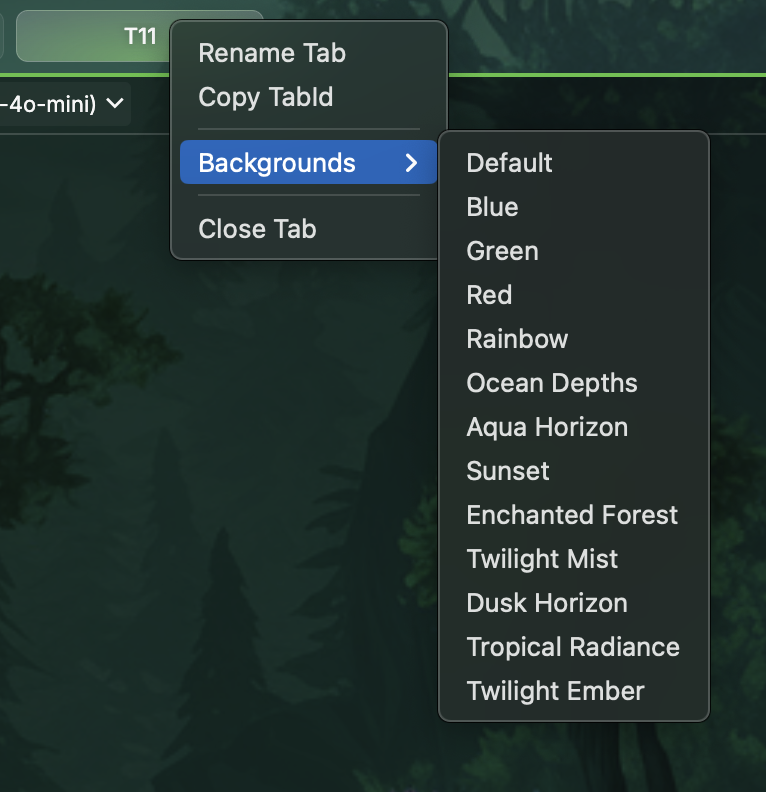
Right click on any tab to bring up a menu which allows you to rename the tab and select different backgrounds.
It is also possible to create your own background themes using custom colors, gradients, images and more by editing your backgrounds.json config file. To see how DanteTerm's built-in tab backgrounds are defined, you can check out pkg/dconfig/defaultconfig/backgrounds.json.
To apply a tab background to all new tabs by default, set the key tab:background in your DanteTerm Config File to one of the background preset keys (e.g. "bg@ocean-depths"). The available built-in background keys can be found in pkg/dconfig/defaultconfig/backgrounds.json.
Terminal Customization
Terminal Theme
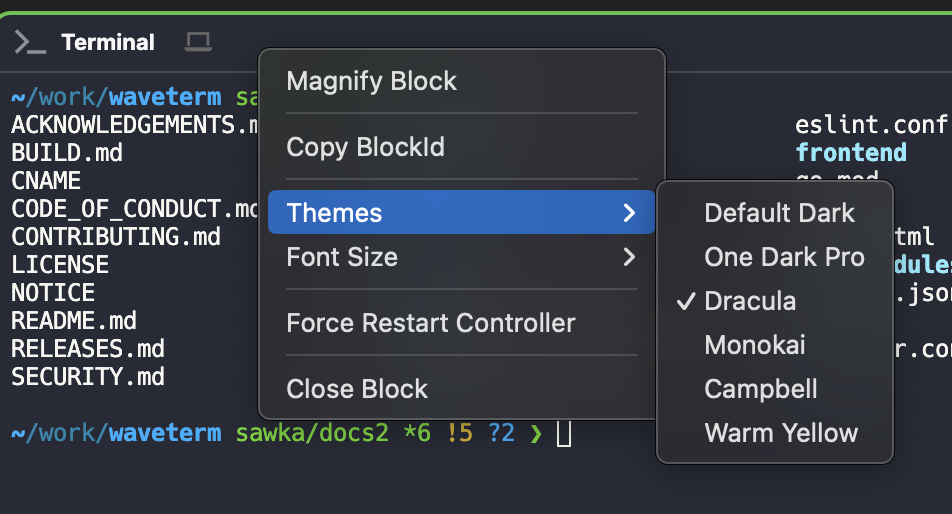
Right click in the header area of any terminal block to bring up a menu which allows you to set a terminal theme for that terminal.
You can set the default theme for all terminals (which haven't had their theme manually overridden) by editing your settings.json file and adding the key term:theme and setting it to the appropriate key. The keys can be found
in pkg/dconfig/defaultconfig/termthemes.json.
If you add your own termthemes.json file in the config directory, you can also add your own custom terminal themes (just follow the same format).
Font Size
From the same context menu you can also change the font-size of the terminal. To change the default font size across all of your (non-overridden) terminals, you can set the config key term:fontsize to the size you want. e.g. { "term:fontsize": 14}.
Font Family
There is no UI to edit your default terminal font family. But, it can be overridden. In your settings.json file you can add the key term:fontfamily and set it to a font that is installed on your local system. If type a font that is not installed, or use a non-monospace font, your terminal will look terrible (don't do that 🙂), delete the key to return to using the default.
Widget Bar
See Custom Widgets for detailed documentation around changing what appears in your widget bar — the row of icons at the right end of the tab bar.
Using widgets.json, you'll be able to remove any default widgets and add widgets of your own. You can customize the icons, text, and defaults (like directories, webpages, remote connection, commands, etc.) of your custom widgets.
Tab Backgrounds
DanteTerm supports powerful custom backgrounds for your tabs using images, patterns, gradients, and colors. The quickest way to set an image background is using the dsh setbg command:
# Set an image background with 50% opacity (default)
dsh setbg ~/pictures/background.jpg

# Set a color background (use quotes to prevent # being interpreted as a shell comment)
dsh setbg "#ff0000"          # hex color
dsh setbg forestgreen        # CSS color name

# Adjust opacity
dsh setbg --opacity 0.3 ~/pictures/light-pattern.png
dsh setbg --opacity 0.7      # change only opacity of current background

# Image positioning options
dsh setbg --tile ~/pictures/texture.png          # create tiled pattern
dsh setbg --center ~/pictures/logo.png           # center without scaling
dsh setbg --center --size 200px ~/pictures/logo.png  # center with specific size (px, %, auto)

# Remove background
dsh setbg --clear
You can use any JPEG, PNG, GIF, WebP, or SVG image as your background. The --center option is particularly useful for logos or icons where you want to maintain the original size.
To preview the metadata for any background without applying it, use the --print flag:
dsh setbg --print "#ff0000"
For more advanced customization options including gradients, colors, and saving your own custom backgrounds, check out our Tab Backgrounds documentation.